





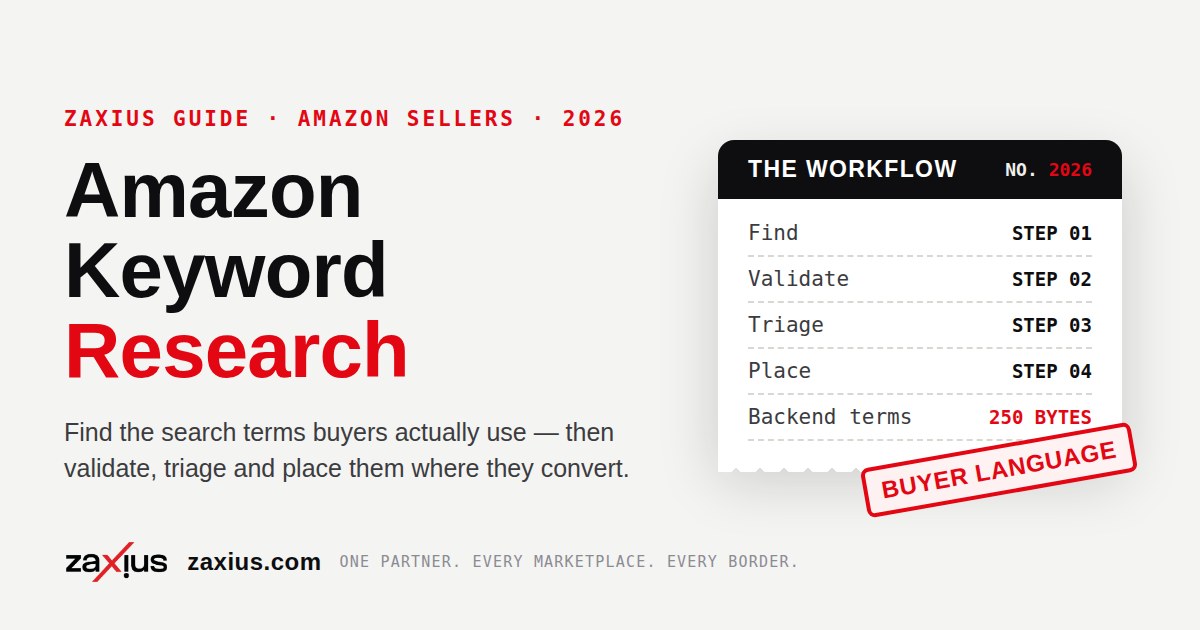
Most Amazon listings are written from guesses: the seller's own words for the product, copied competitor phrases, and whatever a keyword tool scraped. Amazon offers something better. Inside Seller Central, its Brand Analytics dashboards publish real shopper search data — the actual queries customers type, how often they type them, and what they click and buy. This guide builds a keyword list from that data, step by step, using sources any brand-registered seller already has.
A keyword is a term you choose to target — in a listing field or an ad campaign. A search term is what a shopper actually typed into Amazon's search box. The two rarely match perfectly, and that gap is where most listing and advertising waste lives: sellers target the words they would use, while customers buy using different words entirely. Amazon keyword research is the discipline of closing that gap with evidence — collecting real search terms, judging their volume and intent, and assigning each one a job in your listing or your campaigns.
Everything in the first three steps below uses data Amazon itself gives sellers. Third-party keyword tools can add estimates on top, but the workflow stands on its own without them, and it starts from the strongest evidence available anywhere: what shoppers searched on Amazon, and what happened next.
Keywords vs Search Terms: The Distinction That Organizes Everything
Keep three buckets in mind before you touch any dashboard. Proven terms are queries that already send you impressions, clicks or sales — they appear in your own reports. Market terms are queries shoppers use across your category whether or not your products surface for them yet. Candidate terms are plausible phrases from your own knowledge, competitor listings and shopper language that still need evidence. Research is the process of moving terms from candidate to proven, and discarding the ones the data does not support. Every step below feeds one of these buckets.
Step 1: Start With Search Query Performance
The single most useful keyword research surface on Amazon is the Search Query Performance dashboard inside Brand Analytics. Amazon describes it as listing the top queries that led customers to your products, with data for impressions, clicks, cart adds and other sales metrics for each query — plus a breakdown of your brand's share of that performance compared with the whole store. You can work in Brand View for the catalogue as a whole or ASIN View for one product, and each query carries a search query volume (how many times customers used that term in Amazon search in the period) and a search query score.
How to get access
Brand Analytics is available to brands enrolled in Amazon Brand Registry. Amazon states that access requires a Professional selling account and a Brand Representative role for a brand enrolled in Brand Registry; enrollment uses an active, registered trademark — in some cases a pending trademark application can be used instead. Once enrolled, the path is Seller Central → Brands → Brand Analytics. If your brand is not yet registered, our Amazon Brand Registry guide walks through the requirements, and our US trademark registration service covers the trademark step that unlocks it.
What to pull from it
Export the dashboard for your top ASINs over the longest period it offers, and keep four columns: the query, its search query volume, your impressions and clicks, and your purchases. Three findings matter most. First, your proven core terms: high-volume queries where you already earn clicks and orders — these anchor the listing. Second, visibility gaps: high-volume queries where your share of impressions is tiny against the store total; the demand exists and you are not in the results. Third, funnel leaks: queries with strong impressions but weak clicks or cart adds, which usually point at the main image, price or title rather than the keyword itself. The companion Search Catalog Performance dashboard shows the same funnel per ASIN — impressions, clicks and click rates, median prices, cart adds, purchases and conversion rates — which helps you tell a keyword problem from a listing problem.
Step 2: Read the Whole Market in Top Search Terms
Search Query Performance only covers queries already connected to your brand. The Top Search Terms dashboard widens the lens to the whole store. For each top search term it shows a search frequency rank (a relative ranking of how often the term is searched), the top-clicked brands and categories, and the three top-clicked products for that term with their click shares and conversion shares. You can filter by ASIN, brand name, product category or keyword.
Work it category-first: pull the top terms for your category and note the ones your catalogue does not yet target. Then read the top-clicked products on those terms as competitive intelligence — their titles are a map of the phrases the market rewards, and their click and conversion shares tell you how concentrated the term is. A term where one product takes most of the click share is a fight; a term where clicks spread across many products is an opening. Terms from this dashboard are market terms, not proven terms — they still need testing in your listing and campaigns before they earn core status.
Step 3: Mine Your Advertising Search Term Reports
If you run Sponsored Products or Sponsored Brands, your advertising account holds the third evidence source: the search term report. It shows the actual customer search terms that triggered your ads, the keyword or target that matched each one, and what each term did — clicks, spend and sales. This is the only source that shows terms you did not choose, in shoppers' exact wording, with money attached.
Download it on a regular cadence and sort it into the same buckets. Terms with orders at an acceptable advertising cost graduate into your listing copy and into exact-match campaigns, where you control the bid precisely. Terms with clicks and no orders, or wording that plainly describes a different product, become negatives — and also a warning list of phrases to keep out of your listing, where they would attract the same wrong traffic organically. This harvesting loop is the same discipline that drives ACoS down over time; our guide to reducing Amazon PPC ACoS covers the campaign side of it in depth.
Step 4: Expand the List Beyond Your Own Data
Your own reports cannot show you terms for products you have not launched or angles you have never used. Four manual sources close most of the gap, free:
- Amazon's search suggestions. Type your root terms into the Amazon search box in your marketplace and read the autocomplete list, then repeat with a letter after the root (root + a, root + b, and so on). These suggestions are drawn from real shopper searches.
- Top-clicked competitor products. The Top Search Terms dashboard already names them. Read their titles, bullets and A+ Content for the attributes and use cases shoppers respond to — as research input, never as copy to lift, and never as backend terms (Amazon prohibits competitor brand names there, as Step 6 covers).
- Your own reviews and Q&A. Customers describe your product in their words, including uses and problems you may never have marketed. Those phrases are candidate terms with unusually high relevance.
- Category language. Browse your category's filters and best-seller lists for the standardized attribute vocabulary — sizes, materials, compatibility, occasions — that shoppers filter and search by.
Every term from this step lands in the candidate bucket. Nothing here is proven until your listing or a test campaign produces data for it.
Step 5: Score Every Term Before You Use It
A raw research session can produce hundreds of phrases; a listing can only feature a handful prominently. Score each term on four tests before assigning it a job:
- Relevance. Does the term describe exactly what this product is and does? A loosely related high-volume term sends the wrong clicks and damages conversion — the metric Amazon watches most. When in doubt, relevance beats volume.
- Demand. Use search query volume from Search Query Performance and search frequency rank from Top Search Terms as relative signals — enough to rank your own list, not as absolute promises.
- Intent. Terms naming a product type, attribute or use case signal a shopper ready to buy. Terms phrased as questions or research topics usually belong in content, not in a title.
- Contest. Click and conversion shares in Top Search Terms show whether a term is owned by one dominant product or genuinely open.
Sort the survivors into three tiers. Core terms — proven, high-demand, exact-fit — go in the title and the lead bullet. Support terms fill the remaining bullets, description and A+ Content. Backend-only terms — synonyms, abbreviations and alternate names that read badly in public copy — go in the search terms field under the rules in Step 6.
Worked Example: Triage a Raw Keyword List
Worked example — illustrative, not a real account. The table below is a teaching example built for this guide; it is not data from any client store. Assume one product: a 500 ml insulated steel bottle, sold on Amazon US.
| Candidate term | Source | Signal | Decision under this guide |
|---|---|---|---|
| insulated water bottle 500ml | Search Query Performance | Highest query volume for the ASIN; steady orders | Core term — title |
| steel bottle for gym | Search Query Performance | Mid volume; good clicks, few purchases | Support term — bullets; check image and price first |
| leak proof sports bottle | Top Search Terms | High search frequency rank; clicks spread across many products | Candidate — add to listing, test in exact match |
| bottle warmer | Ad search term report | Clicks, no orders; different product entirely | Negative keyword; keep out of the listing |
| hydro flask | Competitor reading | A rival brand's name | Discard — competitor brand names are prohibited in backend terms |
| flask bottle | Reviews / autocomplete | Alternate name shoppers use for the same product | Backend-only term — synonym for the search terms field |
Six raw phrases become one title term, one support term, one test candidate, one negative, one discard and one backend term. That ratio is normal: good research deletes more than it keeps, and every survivor has a defined job.
Step 6: Place Terms Where They Earn Their Keep
Placement follows the tiers. Core terms belong in the title, written for a human first — a readable title with the primary term beats a stuffed one, and Amazon's own listing guidance stresses that title, bullets and backend keywords should work together. Support terms go through the bullet points and A+ Content, where they can sit inside benefit-led sentences. Our Amazon listing optimization guide works through that full placement pass field by field.
The backend search terms field is for the terms that should be indexed but never displayed, and it has hard rules. Amazon's published guidance for sellers: stay within the 250-byte limit (the limit in most marketplaces); include synonyms, abbreviations and alternate names; use all lowercase with words separated by spaces — no punctuation needed; do not repeat words already in your title or brand name; and never include competitor brand names or ASINs. Two consequences are worth memorizing: if the entry exceeds the byte limit, Amazon ignores the entry entirely, so none of its terms are indexed; and a word repeated across fields adds nothing, so spend every byte on coverage you do not already have.
The Monthly Keyword Research Routine
Search behavior moves — seasons, new entrants and new vocabulary all shift the terms worth targeting — so research is maintenance, not a launch task. A workable cadence: weekly, mine the advertising search term report for new converters and negatives; monthly, pull Search Query Performance for your top ASINs and re-tier the list; quarterly, sweep Top Search Terms for your category to catch rising terms and new competitors. Any launch, relaunch or listing rewrite deserves a fresh pass through all six steps before a word of copy changes.
Short on Time? Hand This to Our Team
Keyword research done this way is a standing task inside the accounts we run: on one managed client account, our delivery team, Team BASH, generated $200,000 in gross revenue within 3 months, with listing and search work part of that operation. That is one account's documented outcome — not a typical result, and never a guarantee. If you would rather see the evidence on your own store first, start with our free store audit: we will review your current search visibility and show you the terms your listings are missing before you commit to anything.